
Share
Share
Share
Share
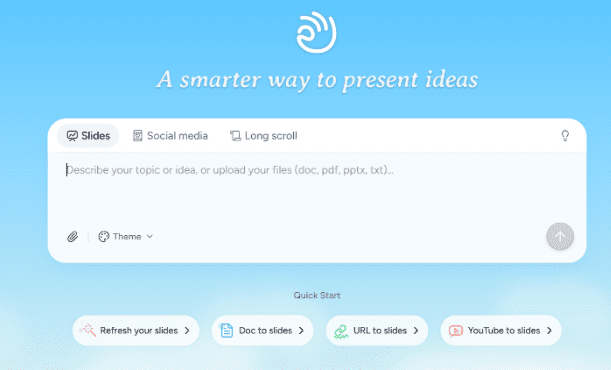
Dokie AI helps you go from an idea to a clean deck fast. If you make slides for work often, it can save hours each week.
What is Dokie AI?
Many AI presentation tools look great at first, but they can be hard to use in real meetings. You may need to rearrange slides, rewrite titles, and fix layouts. Dokie AI aims to reduce that “cleanup time” by generating presentations with a more practical structure from the start.
If your workflow is:
- weekly reports
- marketing updates
- team reviews
- client decks
- planning and strategy slides
Dokie AI is built for that kind of work.
What makes Dokie AI different
Most AI slide tools focus on one of two things:
- Design-first: the slides look clean, but the content flow can be weak
- Content-first: the outline is okay, but slides may look messy
Dokie AI tries to balance both, but its strongest point is still business structure.
That means the deck usually has:
- clear section order (intro → problem → data → plan → next steps)
- slide titles that make sense
- less random filler
- a more “meeting-ready” feel
This is why many people treat Dokie AI as a real Gamma alternative when they want a more classic PPT style.
How Dokie AI works
Here is a simple, realistic workflow.
Step 1: Start with a good input
You can start with:
- a topic (example: “Q2 Marketing Report”)
- a short outline
- notes or pasted text
The more structure you give, the better the slides.
A helpful prompt style is:
- Audience: who will watch it
- Goal: what you want them to decide
- Slide count: 8–12 is often enough
- Must include: 4–6 key sections
- Tone: simple business, clear, no fluff
Step 2: Generate the first draft deck
Dokie AI creates a deck draft with:
- slide titles
- bullet points
- section flow
This is where it saves time: you skip the blank page and get a usable draft fast.
Step 3: Do a fast “trim pass”
Even the best AI slides generator can add extra slides.
The best habit is to:
- delete repeating slides
- shorten text-heavy slides
- keep only the best points
Most decks become better by getting shorter.
Step 4: Add your real proof
AI can draft content, but business decks need real proof:
- your real numbers
- your real examples
- your real screenshots (if allowed)
When you add that, the deck becomes “yours,” not generic.
Step 5: Export and polish
For business work, you usually export and polish in your normal tool:
This final step is where you apply your exact brand style and fix any tiny spacing.
Best features for business users
Instead of listing every feature, here are the ones that matter most for business decks.
1) Strong slide structure
This is the biggest reason to use Dokie AI.
A deck with a clear flow saves time because you do less:
- rearranging
- rewriting titles
- rebuilding the story
If you make weekly slides, this alone is a big win.
2) PPT-friendly output
Some tools create “web style” decks that feel great online but are hard to use in PowerPoint.
Dokie AI focuses more on a classic PPT feel, which is important for:
- company templates
- internal reviews
- clients who want PPTX files
- decks that get edited many times
3) Faster first draft for repeated work
If you create the same type of deck every week (report, update, review), Dokie AI helps you build a repeatable process:
outline → draft deck → edit → present
That repeatability matters more than fancy design.
4) Easy editing mindset
Dokie AI is most useful when you treat it like a “draft builder,” not an “auto-finish” tool.
You generate, then refine quickly.
That’s the most realistic way to use any AI presentation maker today.
Pros and Cons
Pros
- Business-ready structure and clear slide flow
- PPT-friendly style, easy to edit for real meetings
- Great for reports, marketing updates, and client decks
- Saves time on outlining and slide ordering
Cons
- You still need to verify facts, numbers, and claims
- Some decks may need a final design polish for strict brands
- Like all AI tools, vague prompts can lead to generic slides
Who should use Dokie AI?
Dokie AI is a great fit for:
Marketing and growth teams
You often need slides for:
- weekly performance updates
- campaign results
- launch plans
- client reporting
Dokie AI helps create the structure fast so you can focus on the story and data.
Sales and customer teams
For:
- proposals
- account reviews
- quarterly business reviews
A clean structure matters, and you can add your real proof after the AI draft.
Managers and operators
For:
- team updates
- project plans
- roadmap reviews
Dokie AI makes it easy to turn messy notes into a clean deck.
Anyone who builds slides often
If you make presentations every week, you will feel the time savings most.
Who might not love Dokie AI?
Dokie AI may not be your best fit if:
- you only make slides once in a while and don’t care about structure
- you want a super “web-first” story format more than classic PPT
- you need heavy data charts built automatically (you still need real data work)
- you want a perfect deck with zero editing (no tool truly does that yet)
Tips to get better results from Dokie AI
Use a “business outline” template
Try this outline in your prompt:
- Title + goal
- Key results (3 bullets)
- What worked (3 bullets)
- What didn’t (2 bullets)
- Plan (3 bullets)
- Risks (2 bullets)
- Next steps (1 slide)
This simple structure makes AI output stronger right away.
Keep slides short
A good rule:
- 1 idea per slide
- 3–5 bullets max
- 8–12 words per bullet
Replace generic text with real details
Even one real detail per slide improves trust:
- real metric
- real example
- real quote
- real timeline
Don’t be afraid to delete slides
AI will not be offended.
Trimming is how you make the deck feel human.
Pricing and “free” use notes
Many AI presentation makers offer a free plan or a free trial, and paid plans usually unlock more exports, templates, or higher usage.
The most important thing is not the plan name. It’s the limits:
- decks per month
- slides per deck
- export quality (watermark or not)
- team and brand features
If you use Dokie AI for weekly work, check those limits before you commit.
Conclusion
Dokie AI is one of the best AI presentation makers for business in 2026. It saves time by creating clear slide structure and PPT-friendly decks, so you can focus on real data and real storytelling.
FAQs (4)
1) Is Dokie AI good for business presentations?
Yes. Dokie AI is built for business decks like reports, updates, and client presentations, with clear structure and PPT-friendly output.
2) Does Dokie AI replace PowerPoint?
Not fully. It helps you create the first draft fast, but most people still export and do final edits in PowerPoint or Google Slides.
3) How do I get the best results from Dokie AI?
Give a clear prompt with audience, goal, slide count, and sections. Then trim filler slides and add your real numbers and examples.
4) Is Dokie AI a good Gamma alternative?
Yes, especially if you want a more classic PPT style with stronger business structure and less slide rearranging.