
Share
Share
Share
Share
An Anki remote works by sending a button press over Bluetooth as either keyboard-style input or gamepad-style input. Anki, AnkiMobile, AnkiDroid, or a desktop add-on then decides what that input should do. The remote does not change cards itself; it simply sends recognizable controls that the reviewing app can map to actions such as reveal answer, Good, Again, Hard, Easy, undo, or replay audio.
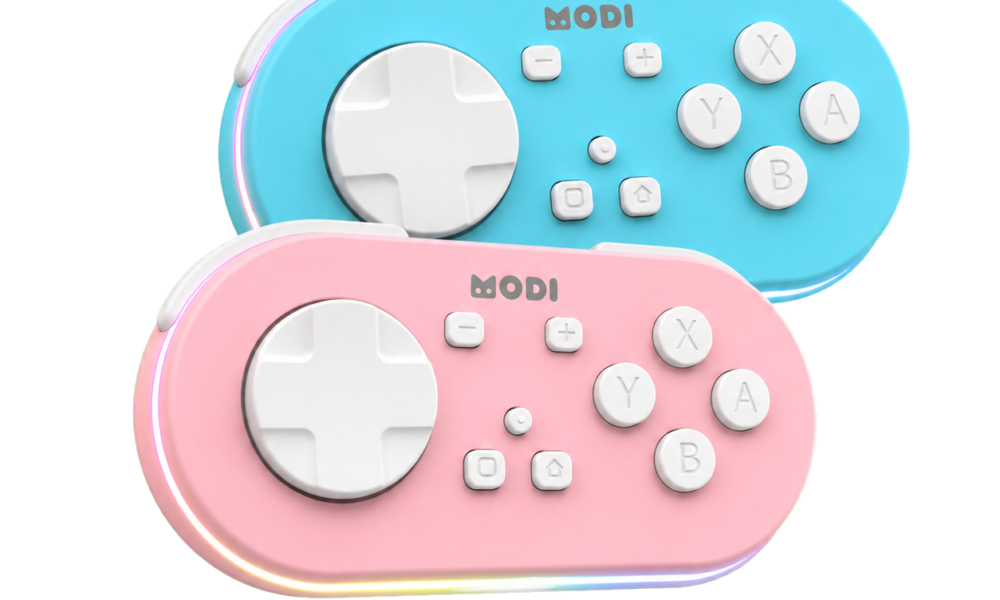
With MODI, that path depends on the mode you pair in. Keyboard Mode is intended for desktop Anki use with preset keybindings and does not require an add-on for the default workflow. Switch Mode is used for gamepad-style input, including the standard mobile setup. Readers can review the documented compatibility and setup details for Bluetooth Anki remote before deciding which mode fits their device.
From Button Press To Review Action
The physical button is only the first step. When you press a MODI button, the remote sends an input through its current Bluetooth profile. The computer, phone, or tablet receives that input, then the active app interprets it. If the app is Anki on desktop, it may respond to ordinary keyboard shortcuts. If the app is AnkiMobile or AnkiDroid, it may use its own controller or keybind settings.
This separation matters because a successful Bluetooth connection does not automatically prove every review command is configured. One layer can be working while another is not. The remote may be connected, but the app may still need a gamepad assignment, a keybind change, or a restart after pairing. Treat the chain as three parts: remote mode, host-device recognition, and app-level action mapping.
Bluetooth Pairing Sets The Mode
MODI has two pairing workflows because its Bluetooth behavior changes by mode. In Keyboard Mode, open the device Bluetooth settings, hold A and Home for one second, and select the MODI connection. A solid green center LED indicates a successful Keyboard Mode connection. This mode is meant for macOS, Windows, and Linux desktop use where preset keyboard inputs are useful for Anki review.
In Switch Mode, open Bluetooth settings, hold Y and Home for one second, and select the MODI connection. A solid blue center LED indicates a successful Switch Mode connection. This mode exposes gamepad-style inputs and is recommended for AnkiMobile on iPhone and iPad and AnkiDroid on Android. It is also the desktop path when a user wants custom remapping through the optional MODI add-on.
What Keyboard Mode Sends
Keyboard Mode is the most direct desktop path because Anki already understands common keyboard controls. Desktop Anki supports controls such as Space or Enter to reveal an answer or choose Good, plus number keys 1 through 4 when answer buttons are available. MODI builds on that idea by sending preset inputs for review tasks, navigation, and control actions without requiring a separate Anki add-on.
The documented Keyboard Mode inputs include Again, Hard, Good or Next, Easy, Undo, Suspend, Escape, Spacebar, and direction-key navigation. The practical effect is that a desktop review session can respond as though a keyboard command was entered. If a third-party desktop site or app accepts those same keyboard inputs, it may respond too, but support depends on that app rather than on MODI alone.
What Switch Mode Sends
Switch Mode changes the input type from keyboard-style commands to gamepad-style controls. That distinction is why it is the standard mobile setup for MODI. The phone or tablet first needs to recognize the controller profile, and then the study app decides which command each input should trigger. MODI is an independent Bluetooth accessory, not an official Anki, AnkiMobile, or AnkiDroid product.
MODI’s Switch Mode defaults include Space or Good, Easy, Again, Replay Audio, Hard, and Undo. On mobile, those defaults are still filtered through the app’s available control settings. AnkiMobile and AnkiDroid each provide their own configurable action lists, so the most accurate way to think about Switch Mode is: MODI supplies gamepad inputs, and the app turns selected inputs into review commands.
Where App-Level Mappings Fit
On AnkiMobile, the standard MODI setup uses Switch Mode, then the mapping work happens inside AnkiMobile settings. The relevant path is Settings, Review, Gamepads, where the desired actions can be assigned. AnkiMobile supports configurable gamepad actions when iOS recognizes the controller profile. If the controller is not recognized correctly by the device, the in-app mapping screen may not receive the expected inputs.
On AnkiDroid, the standard MODI setup also uses Switch Mode, then Settings, Controls, Set Key Binds. One documented wrinkle is visual: X-Y-B-A inputs can appear as Y-X-A-B in the AnkiDroid menu because of a third-party display mapping issue. That label mismatch does not necessarily mean the command is wrong. Assigned commands can still function normally after selection.
Desktop Remapping With The Add-On
The MODI desktop add-on is optional and is mainly relevant when Keyboard Mode presets are not the workflow a desktop user wants. The add-on code is 406900239. In desktop Anki, it is installed through Tools, Add-ons, Get Add-ons, followed by an Anki restart. After installation, the MODI Anki Remote menu can be opened to configure buttons for a custom desktop setup.
This add-on should not be confused with the remote itself or with Anki’s built-in keyboard support. Keyboard Mode can work without the add-on because it sends preset keyboard inputs. The add-on extends desktop Anki for remapping, and like other desktop Anki add-ons, it may need updates after Anki changes. That is app extension behavior, not a separate Bluetooth pairing mode.
Diagnosing A Broken Input Chain
When a button does not trigger the expected Anki action, start by identifying which layer failed. If the center LED never becomes solid green or blue, revisit Bluetooth pairing and the chosen mode. If the remote connects but acts wrong after changing modes or devices, forget every saved MODI or Anki remote entry in Bluetooth settings, then repeat the full pairing process for the mode you want.
If pairing is fresh and the remote still connects but remains unresponsive, restart the host device and try again. If Bluetooth is stable, inspect the app mapping next: desktop Anki shortcuts, AnkiMobile Gamepads assignments, AnkiDroid key binds, or the optional desktop add-on configuration. That sequence avoids blaming one part too early and matches how the input actually travels from button press to review action.