If you want to play Apple Music tracks on an MP3 player, car stereo, or another device, you may be looking for a way to convert Apple Music to MP3. The problem is that not every song in your Apple Music library is a normal audio file. Apple Music subscription downloads are protected, while purchased and locally stored music can work differently.
In this guide, I’ll explain the difference first, then show you three practical ways to handle Apple Music to MP3 conversion depending on the type of music file you have.
Part 1: Before Converting Apple Music to MP3
Before you try to convert Apple Music to MP3, you need to know what type of music file you are working with. Apple Music can contain subscription downloads, purchased music, and local files that you added yourself. These files don’t all have the same restrictions.
Can You Convert Apple Music to MP3?
You cannot directly convert protected Apple Music subscription tracks to MP3 using the built-in Apple Music app because they are locked by Digital Rights Management (DRM).
However, you can convert unprotected local music files or older iTunes purchases that are now DRM-free using the Apple Music or iTunes app. Apple provides an option called Create MP3 Version after you select MP3 as the import format. Apple Music subscription downloads are different. They are protected and tied to your subscription, so the built-in Apple Music converter cannot simply turn them into regular MP3 files. This is why people looking for an Apple Music to MP3 converter usually come across third-party software.
Apple Music Downloads vs. Purchased / Local Music
Not every song inside Apple Music or iTunes works the same way.
| Feature | Apple Music Downloads | Purchased / Local Music |
| Source | Apple Music subscription | iTunes purchase or local file |
| DRM | Protected | Sometimes DRM-free |
| MP3 conversion | Not supported by Apple’s built-in converter | Supported for unprotected files |
| Ownership | Access depends on subscription | Purchased files remain in your library; conversion depends on DRM status |
| Native conversion | No | Yes, when the file is unprotected |
Why Can’t Some Apple Music Files Be Converted Directly?
DRM, or Digital Rights Management, is used to control how certain digital music can be copied and played. This creates a problem if you simply try to run a protected Apple Music download through a normal audio converter. The converter does not have access to the audio as an ordinary MP3 or M4A file.
So, if your goal is to download Apple Music to MP3, first check whether you’re dealing with an unprotected local or purchased file. For protected subscription content, use only methods and software that you are legally permitted to use in your location and under the applicable service terms.
Part 2: How to Convert Apple Music to MP3 with FliFlik UltConv
Now, if you want to convert Apple Music to MP3, then you can try a third-party tool like FliFlik UltConv Apple Music Converter. With UltConv Apple Music Converter, you can save supported Apple Music content in widely used audio formats such as MP3 for easier personal media management and playback across compatible devices. It lets you access supported Apple Music content through its built-in Apple Music converter and save it as MP3 at up to 320Kbps or keep the original 256Kbps quality. It also supports batch conversion, so you can process multiple songs or entire playlists instead of converting them one by one. You can also keep the original metadata, including the song title, artist, album, and cover art.
UltConv combines music downloading, format conversion, and batch processing in one desktop application. You can use it for music and video from supported services, convert media into different formats, and process multiple files at once.
Key Features
- Download Apple Music songs, albums, and playlists in batches
- Convert audio at up to 320Kbps or keep the original 256Kbps quality
- Preserve ID3 tags, including title, artist, album, and cover art
- Convert Apple Music to MP3, WAV, AAC, or FLAC
- Support Apple Music, Spotify, Amazon Music, and SoundCloud in one app
How to Convert Apple Music to MP3 with UltConv Apple Music Converter
Step 1: Launch UltConv and go to Premium Music > Apple Music Converter. MP3 is selected as the default output format.
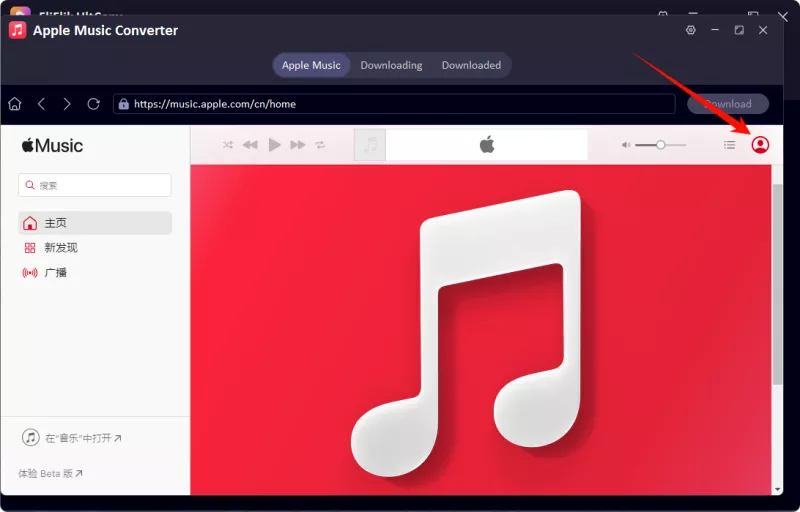
Step 2: Sign in to Apple Music through the built-in browser to access your music library. Once logged in, you can find your available music directly in UltConv.
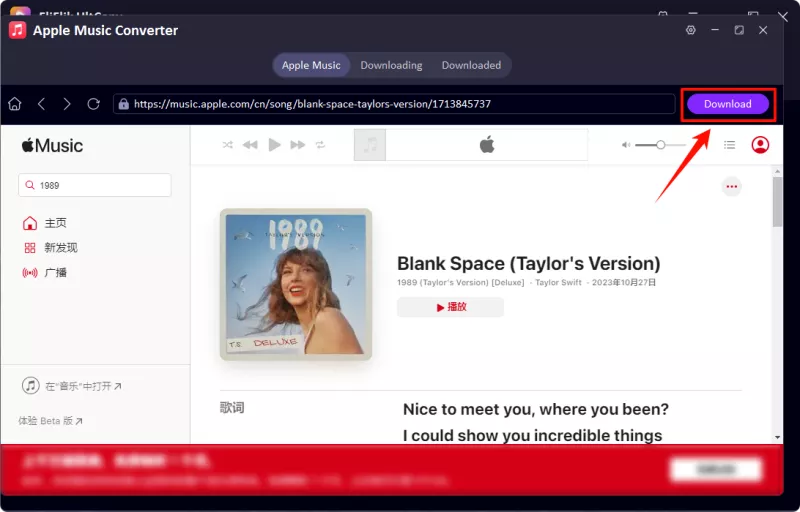
Step 3: Find the Download button in the top-right corner and click it to start converting the selected Apple Music track to MP3.
Step 4: If you want to convert a complete playlist or album, select the songs you need. You can also choose all available tracks to process them together.
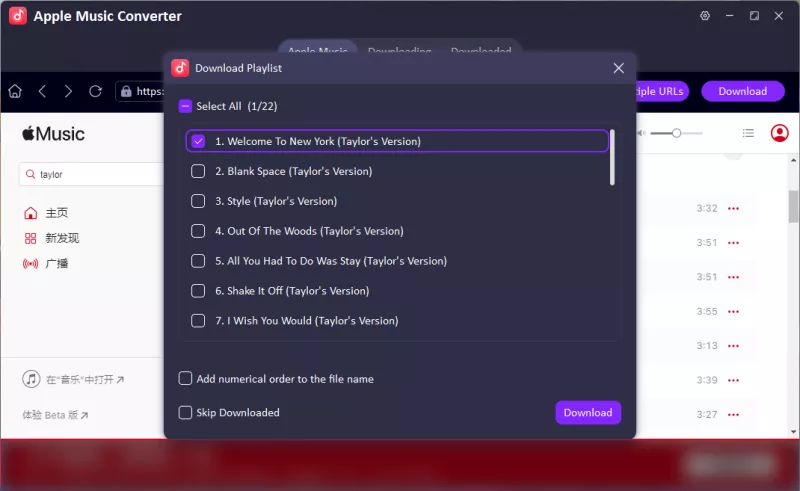
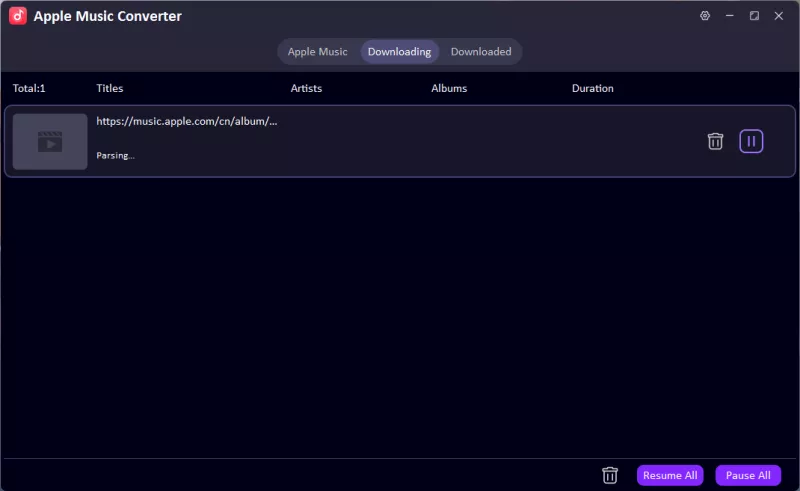
Step 5: Click Download to start the process. You can check the progress in the Downloading tab. Once the conversion is complete, your MP3 files will be ready to play on supported devices.
Part 3: How to Convert Apple Music to MP3 Online
If you don’t want to install desktop software, you can use the FliFlik Online Apple Music to MP3 Converter directly in your browser. It provides a simple way to process supported Apple Music links online without installing an additional program.
For occasional conversions, the online tool can be more convenient. If you need batch conversion or more output options, the desktop version of UltConv may be a better fit.
How to Download Apple Music as MP3 File for Free?
Step 1: Open the FliFlik Online Apple Music to MP3 Converter in your browser. Then copy the Apple Music link of the track you want to process and paste it into the input box.
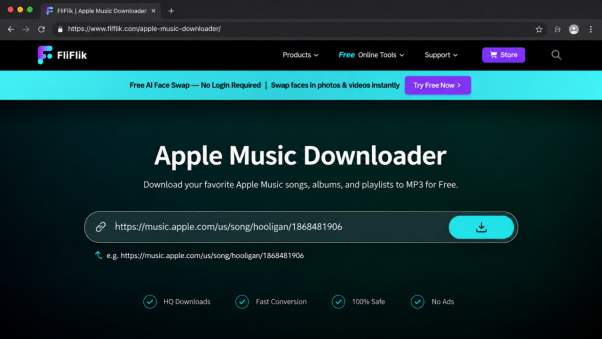
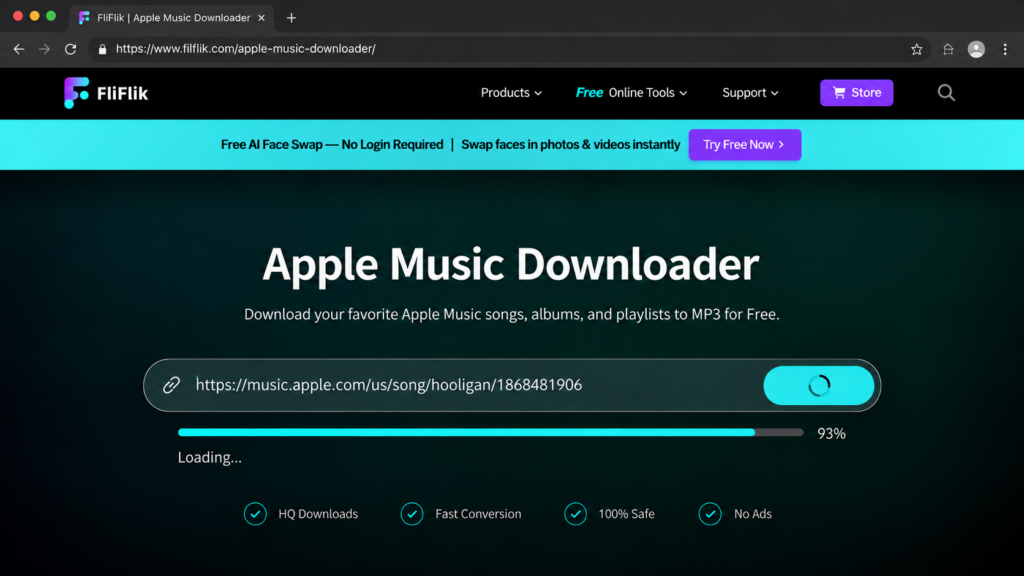
Step 2: Click the Download button and wait for FliFlik Online to process the Apple Music link.
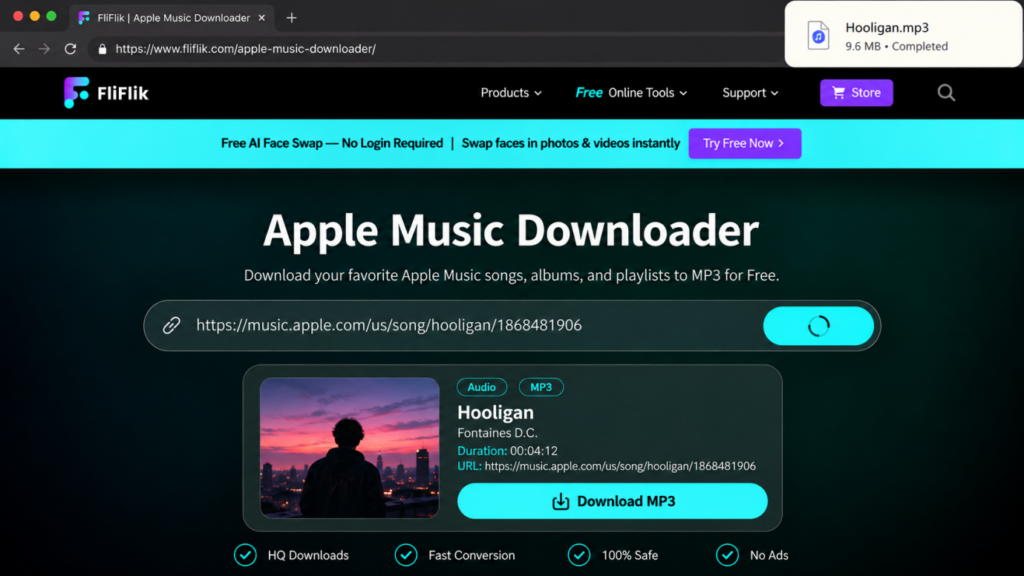
Step 3: When the file is ready, click Download MP3 to save it to your computer.
Pros
- Works directly in a browser with no desktop installation
- Simple browser-based workflow
- Useful for occasional conversions
Cons
- Batch processing may be more limited
- Fewer advanced features than the desktop version
- Performance depends on your browser and network connection
Part 4: How to Convert Purchased or Local Music to MP3 with Apple Music
This is the easiest option if you already have an unprotected music file. Apple Music on Mac or iTunes on Windows lets you select an encoding format such as MP3 and create a converted copy of supported songs.
Which Files Can Apple Music Convert Natively?
Apple Music can natively convert unprotected audio files in your local library, including standard AAC files (non-DRM .m4a), MP3, AIFF, and WAV files. These files can be converted to MP3 using the built-in conversion option.
However, Apple Music subscription downloads cannot be converted using the built-in conversion feature. Files such as .m4p downloads and cached streaming content are not handled as ordinary local audio files, so Apple Music may gray them out or skip them during conversion.
How to Convert Apple Music Files to MP3 on Mac or Windows
Step 1: Open the Apple Music app on Mac or iTunes on Windows.
Step 2: On Mac, click Music > Settings. On Windows, go to Edit > Preferences.
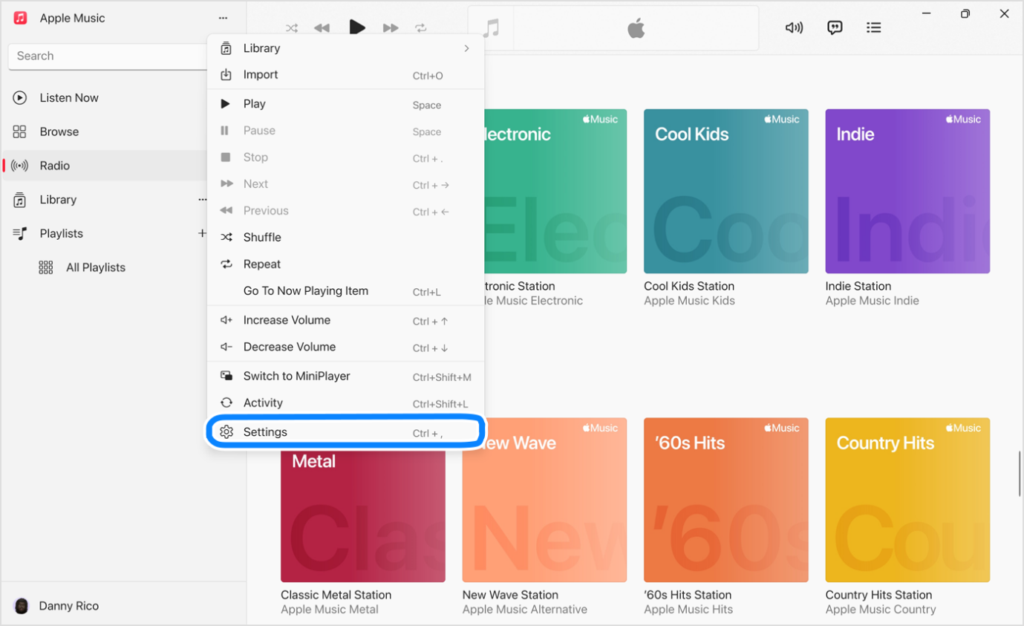
Step 3: Open the Files tab, or the General tab on older versions, and click Import Settings.
Step 4: Click the menu next to Import Using and select MP3 Encoder. Then click OK.
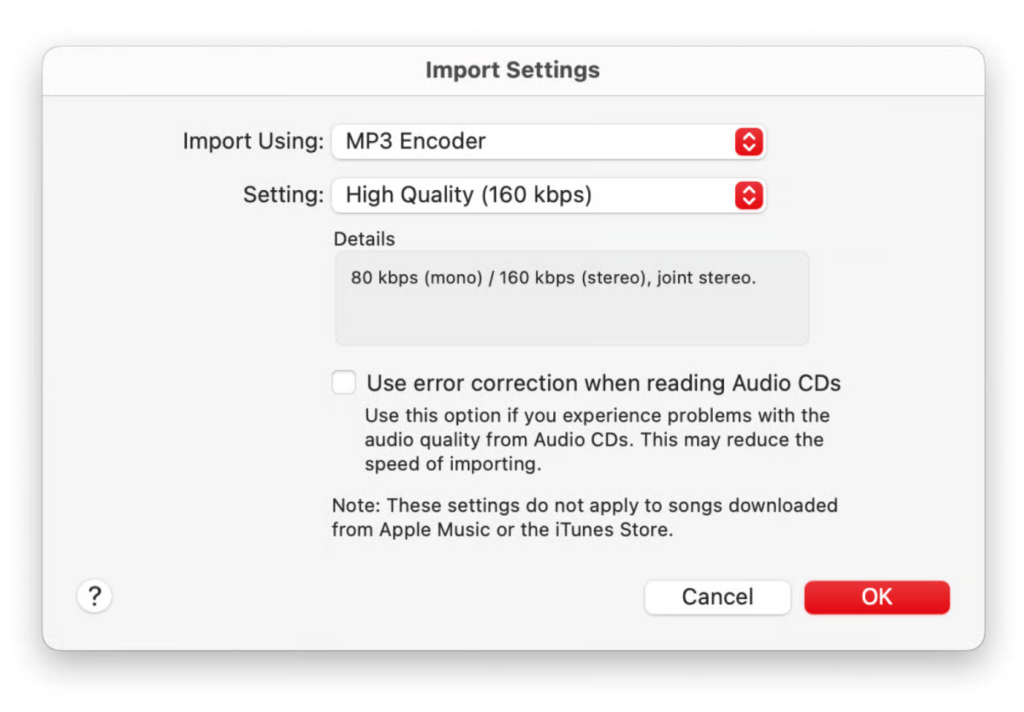
Step 5: Select the local song or songs you want to convert from your music library.
Step 6: Go to File > Convert and select Create MP3 Version. Apple Music or iTunes will create a new MP3 copy while keeping the original file in your library.
Purchased/Local Files vs. Apple Music Subscription Downloads
This is the part that often causes confusion. If you purchased a compatible, DRM-free song or imported your own music into Apple Music, you can generally use Apple’s built-in conversion option.
Apple Music subscription downloads are different. They are protected and are not treated as ordinary local files that you can convert. So if you’re asking how to convert Apple Music to MP3, first check where the song came from. If it is your own unprotected file, Apple’s built-in converter may be all you need. If it is a protected subscription download, the normal conversion option won’t work.
Part 5: Want to Create Your Own Music Instead?
Converting Apple Music to MP3 is useful when you already have a song you want to listen to on another device. But sometimes you may want to create something completely new instead of downloading or converting an existing track.
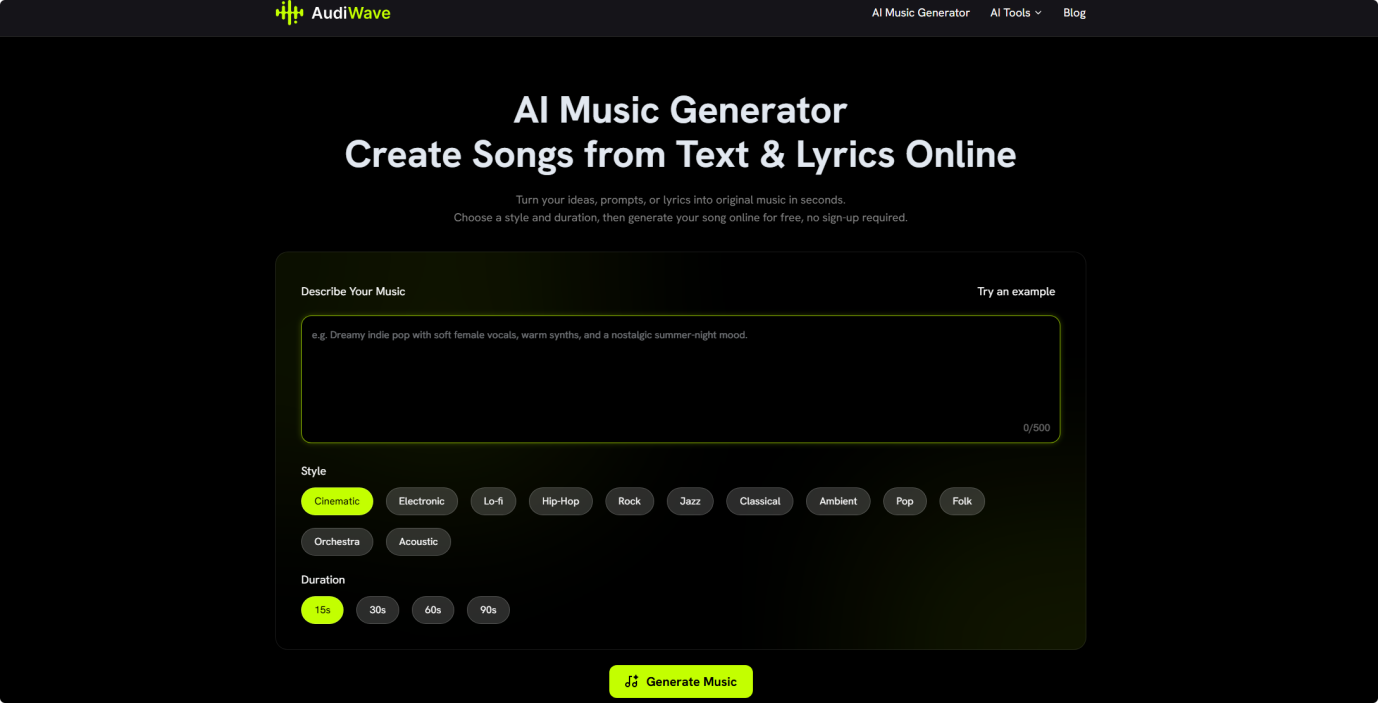
In that case, you can try AudiWave.ai, an AI music platform for people who want to turn ideas, prompts, or lyrics into original music. You can start with a mood, genre, song concept, or your own lyrics and use AI music tools to explore different musical directions.
Turn Text or Lyrics Into Music
If you already have lyrics but don’t know how to compose or arrange the music, an AI music generator can help you turn those words into a playable song concept. It can also be useful when you simply have an idea such as “a dreamy indie pop song” or “an upbeat electronic track for a travel video” and want to hear how it might sound.
Who Is AudiWave For?
- Content creators looking for original music ideas for videos, podcasts, or social content
- Songwriters who want to experiment with lyrics and melodies
- Beginners who want to try music creation without traditional production experience
- Creators who want to experiment with different genres, moods, and musical ideas using AI
If you only want to convert music already in your Apple Music library, use one of the methods above. But if you want to start with your own idea instead, AudiWave AI music generator gives you another direction to explore.
Conclusion
There isn’t one Apple Music to MP3 method that works for every type of music. If you’re working with your own local files or compatible purchases, Apple’s built-in conversion feature may already be enough. For occasional browser-based conversions, the FliFlik Online Apple Music to MP3 Converter also provides a simple option without installing additional software.
For users who want more flexibility, batch conversion, multiple output formats, and easier management of supported Apple Music content, UltConv Apple Music Converter is the more complete option. It can convert supported Apple Music content to MP3 and other common audio formats while keeping useful metadata such as song titles, artists, and album information. If you regularly need to manage or convert multiple Apple Music tracks, UltConv is the option worth trying.