
Share
Share
Share
Share
7 Best AI Video Upscalers to Use in 2026
If you have ever tried to reuse old footage in a new project, you know the problem. The clip is fine, the moment is right, but it was shot in 720p on a phone from 2016, or pulled from a screen recording, or handed over by a client as a compressed export. Drop it on a 4K timeline and it turns to mush. Re-shooting is not an option. Traditional sharpening filters just make the blur crunchier.
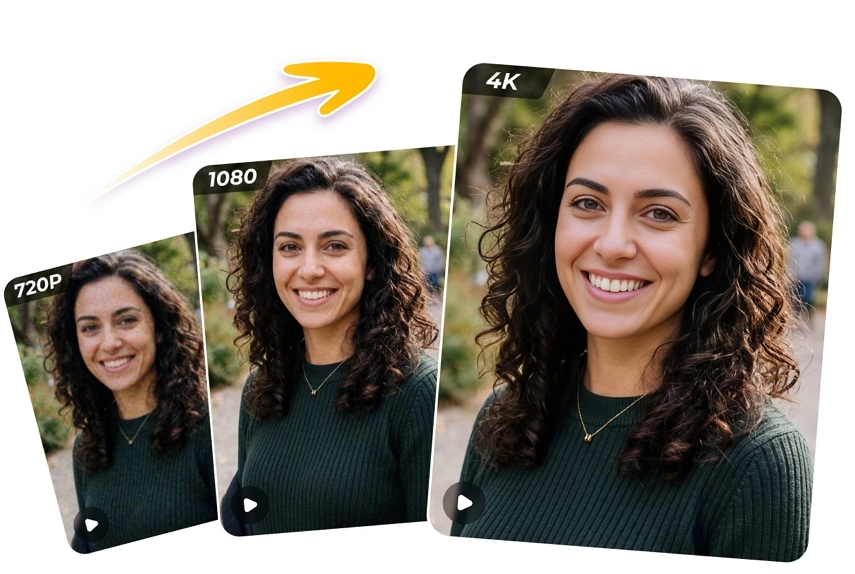
That is the gap AI video upscalers now fill. Instead of stretching pixels, they use trained neural networks to reconstruct detail frame by frame, so a soft 1080p clip can come out as a clean 4K file that holds up on a large display. What used to require a render farm and a specialist now happens in a browser tab or a desktop app.
The catch is that the market has split into two very different camps: heavyweight desktop suites that demand an expensive subscription and a powerful GPU, and online tools with wildly different credit systems. Picking the wrong one either wastes money or wastes an afternoon.
This guide walks through seven of the best AI video upscalers available in 2026, starting with the one that offers the fastest path from upload to finished 4K file, then covering the desktop, cloud and open-source alternatives so you can pick based on your footage, your budget and how often you need it.
What Is an AI Video Upscaler?
An AI video upscaler is software that increases a video’s resolution using machine learning rather than simple interpolation. Classic resizing looks at neighbouring pixels and averages them, which is why enlarged video looks blurry. A neural upscaler has been trained on millions of paired low-resolution and high-resolution frames. When it sees a soft edge, a face or a texture, it predicts what the missing detail most likely looked like and rebuilds it.
Modern tools also handle the problems that come bundled with low-resolution footage: compression blocks, noise, flicker between frames and colour banding. The best ones keep results temporally consistent, meaning the reconstructed detail does not shimmer or crawl from one frame to the next.
Where it matters in practice:
- Marketing and social teams repurposing older brand footage for 4K displays, trade-show screens and ad placements.
- Creators and editors mixing archive clips, phone recordings and stock footage into a single high-resolution edit.
- Agencies who receive compressed client assets and need a deliverable that looks intentional.
- Anyone with family videos, wedding footage or old gameplay captures that deserve better than a blurry export.
The tools below all do this core job. They differ in where the processing happens, how you pay and how much control you get.
7 Best AI Video Upscalers to Use in 2026
1. VideoUpscaler
The workflow is deliberately short. You sign in, drop a video onto the page, choose 1080P, 2K or 4K, and start the job. The service shows progress as it runs, and when it finishes you can compare the original and the upscaled clip before you save the file.
Key features
- Three output tiers. Upscale to 1080P, 2K (1440p) or 4K (2160p). You choose the target per job, so a short social clip and a long presentation do not have to cost the same.
- Cloud GPU processing. Nothing to install and no dependency on your own hardware. Older laptops and Chromebooks work the same as a gaming desktop.
- Broad input support. Upload MP4, MOV, MKV or WebM files up to 500 MB each.
- Batch queue. Paid accounts can queue up to 10 videos in one batch, which is the difference between an afternoon of babysitting uploads and a single click.
- Free to try. Every new account gets 10 free credits to test the pipeline on real footage before paying anything.
How the free tier works
The free credits are enough for a short clip at 1080P, so you can check how the model treats your specific footage rather than a demo reel. Videos processed on an account that has never made a purchase carry a small VideoUpscaler watermark in the corner. As soon as you buy a plan or a credit pack, that watermark disappears from your output.
Pros
- Fastest setup of any tool on this list. There is no download, no driver and no model selection screen.
- Predictable, credit-based pricing that scales with the length and resolution of what you actually process.
- Works on any machine with a browser, which makes it easy to hand to a client, a junior editor or a marketing colleague.
- Batch processing is included on every paid plan, not reserved for the top tier.
- Clean output without a heavy “AI look”, which matters for real-world footage such as interviews, events and product shots.
Cons
- It is a focused upscaler, not an editor. There is no trimming, colour grading or frame interpolation built in.
- Files are capped at 500 MB, so very long or very high-bitrate sources need to be split or compressed first.
- Processing happens in the cloud, so you need a reasonable upload connection for large files.
Pricing
Credits are consumed per second of output, and higher resolutions cost more per second. Roughly speaking, 1,000 credits cover about 16 minutes of 1080P output or about 5.5 minutes of 4K.
- Creator: $29.90 per month for 1,000 credits, no watermark, batch processing, 1080P, 2K and 4K output.
- Pro: $49.90 per month for 2,000 credits (about 33 minutes of 1080P or 11 minutes of 4K). Failed jobs are refunded automatically.
- Studio: $99.90 per month for 5,000 credits (about 83 minutes of 1080P or 27 minutes of 4K). Failed jobs are refunded automatically.
New accounts start with 10 free credits, so you can see a real result on your own footage before choosing a plan. Full details are on the VideoUpscaler pricing page.
Best for: marketers, creators and small teams who need reliable 1080P to 4K upscaling on demand, without owning the hardware or learning a professional suite.
2. Topaz Video AI
Topaz Video AI is the reference point for desktop video enhancement. It is a Windows and Mac application that bundles a large library of proprietary models for upscaling, denoising, deinterlacing, stabilisation and frame interpolation, with fine-grained control over each.
Key features
- Dozens of specialised models tuned for different source types, from compressed web video to progressive footage to interlaced broadcast material.
- Frame interpolation for slow motion and frame-rate conversion, plus motion deblur and stabilisation.
- Unlimited local rendering on your own GPU, with optional cloud rendering credits on higher tiers.
- Professional export options including ProRes and image sequences.
Pros
- The widest toolset of any product in this list and very high output quality when tuned correctly.
- Everything runs locally, so footage never leaves your machine.
Cons
- Expensive. Topaz moved to subscription-only pricing, and there is no longer a perpetual licence for new customers.
- Demands a powerful GPU. Rendering long 4K jobs on a laptop can take hours.
- Steep learning curve. The number of models and sliders is a benefit for specialists and a burden for everyone else.
Pricing: Personal is $299 per year (shown as $25 per month on an annual commitment) or $59 month-to-month. Pro, which adds commercial licensing, is $699 per year. Topaz Video is also included in the Topaz Studio bundles from $399 per year.
Best for: post-production professionals with strong hardware who need maximum control and use the tool every week.
3. HitPaw Online Video Enhancer
HitPaw offers both a desktop suite and an online video enhancer. The online version runs in the browser and follows a credit model, with an unusual weekly plan aimed at people who have one project to finish.
Key features
- Browser-based upscaling and enhancement with no install.
- Credits shared across HitPaw’s other online tools, including watermark removal and AI photo and music generation.
- Weekly, monthly and yearly plans with a 30-day money-back guarantee.
Pros
- The weekly plan is a low-commitment way to get one job done.
- Simple interface aimed at non-technical users.
Cons
- The free tier is preview-only, so you cannot export a test result without paying.
- Credits are tied to the billing period and each plan caps total video seconds, which makes cost per minute hard to compare.
- Enhancement quality is aimed at general consumers rather than professional deliverables.
Pricing: Weekly at $9.99 for 300 credits (up to 600 seconds of video enhancement), Monthly at $24.99 for 1,200 credits (up to 2,400 seconds), Yearly at $79.99 for 3,000 credits (up to 6,000 seconds).
Best for: casual users who need a single short video enhanced and do not want a recurring subscription.
4. TensorPix
TensorPix is a cloud platform that combines video enhancement with generative image and video tools. It is priced on a credit system where one credit covers roughly two minutes of enhanced video, and it offers a genuinely free tier.
Key features
- Video enhancement for inputs up to 4K on paid plans, with a set of stackable filters per video.
- A free plan with weekly login credits, enhancement up to 720p and 1 GB of storage.
- Credits roll over month to month on paid plans.
Pros
- Very low entry price and one of the few tools with a permanent free plan you can actually export from.
- Credits cover several media types if you also generate images or short clips.
Cons
- The free plan tops out at 720p, so you cannot test the 4K path without paying.
- Credit allowances are small on the lower tiers, and the headline prices assume annual billing.
- Files on the free tier are deleted after 30 days.
Pricing: Free plan at $0. Standard at $5.50 per month with 10 credits, Premium at $12.42 per month with 35 credits, Elite at $30.25 per month with 110 credits, all billed annually. Extra credits cost $0.80 to $3 each depending on the tier.
Best for: hobbyists and occasional users who want a cheap, browser-based option and can live with modest monthly allowances.
5. AVCLabs Video Enhancer AI
AVCLabs Video Enhancer AI is a desktop application for Windows and Mac that focuses on restoration as much as upscaling. Alongside resolution enhancement it offers denoising, face refinement, colourisation of black-and-white footage and colour correction.
Key features
- Upscaling to 1080P, 4K and beyond, with dedicated models for faces and for anime.
- Noise reduction, object removal and colour enhancement in the same pipeline.
- Local processing on your own GPU.
Pros
- Good at old, damaged or black-and-white footage where restoration matters more than raw sharpness.
- Straightforward interface compared with Topaz.
Cons
- Requires a capable GPU and a long render time for 4K output.
- Monthly pricing is high for occasional use, and licence terms have changed over time, so check the current offer before buying.
Pricing: $39.95 per month for the Video Enhancer AI licence. Annual and lifetime licences are also sold, with terms that vary by promotion.
Best for: people restoring archives, home video collections or historical footage on a desktop machine.
6. Cutout.pro Video Enhancer
Cutout.pro is an online AI toolbox whose video enhancer is sold through prepaid minute packages. The same credits also cover its video background removal, AI video generation and photo animation tools.
Key features
- Browser-based enhancement of files up to 2 GB, output up to 4K, up to 30 fps.
- Prepaid minute bundles with no subscription.
- Shared credits across a wide range of image and video AI tools.
Pros
- Pay-as-you-go structure suits teams who need enhancement occasionally alongside other tasks.
- Larger file limit than most browser tools.
Cons
- The smallest package works out at roughly $9 per minute of video, which is expensive for regular upscaling.
- Frame rate is capped at 30 fps, so 60 fps gameplay or sports footage is a poor fit.
- It is a general toolbox, not a dedicated upscaler, and the enhancement controls reflect that.
Pricing: 1 minute for $9, 3 minutes for $24, 5 minutes for $39, 15 minutes for $108, 45 minutes for $299, up to 330 minutes for $1,299.
Best for: agencies already using Cutout.pro for other AI tasks who want occasional enhancement without another subscription.
7. Video2X
Video2X is a free, open-source video super-resolution and frame interpolation framework. It wraps well-known models such as Real-ESRGAN, Real-CUGAN, Anime4K and RIFE, and version 6 added a Windows GUI so it is no longer command-line only.
Key features
- Runs on Windows and Linux with any Vulkan-capable GPU, including older and integrated graphics.
- Supports multiple upscaling and interpolation models plus custom shaders.
- Can be run on Google Colab to borrow a cloud GPU at no cost, within usage limits.
Pros
- Completely free with no credits, subscriptions or watermarks.
- Excellent for anime and illustrated content thanks to Anime4K and Real-CUGAN.
Cons
- Setup still requires some technical comfort, and there is no official macOS build.
- Speed depends entirely on your hardware, and there is no support beyond the community.
- Model choice is left to you, and picking the wrong one for real-world footage produces obvious artefacts.
Pricing: Free and open source under the AGPL licence.
Best for: technically confident users, anime fans and anyone who wants to experiment with models without spending money.
How to Choose the Right AI Video Upscaler
The right answer depends less on which tool has the most features and more on how you actually work. Here is what to weigh.
Where the processing happens. Desktop tools such as Topaz and AVCLabs give you offline processing and unlimited renders, but only if you own a strong GPU and are willing to leave it running. Cloud tools such as VideoUpscaler and TensorPix remove the hardware question entirely and work on any laptop, which matters if the person doing the upscaling is a marketer rather than an editor.
How often you need it. If you upscale every day, a professional desktop subscription may pay for itself. If you need it for a campaign this month and nothing next month, a credit-based service where you pay for the minutes you process is cheaper and far less hassle.
What resolution you really need. Not every deliverable needs 4K. Upscaling to 1080P or 2K is cheaper on every credit-based tool and often enough for social feeds and internal presentations. Tools that let you choose the target per job, rather than forcing a single output, save real money.
Your footage type. Anime and illustrated content behave differently from live-action video. Video2X and AVCLabs have dedicated anime models. For interviews, events, product video and phone footage, a general-purpose model with a natural look is usually the better choice.
Free trial quality. A watermarked or preview-only trial tells you almost nothing. Prefer tools that let you run your own clip through the real pipeline before paying, even if the trial is short. Ten seconds of your actual footage is worth more than a polished demo reel.
Batch and team use. If several people will touch the tool, or you have a folder of clips to process, look for batch queues and a workflow simple enough that nobody needs training.
Conclusion
AI video upscaling has moved from a specialist trick to a routine step in content production. In 2026 the question is no longer whether the technology works, but which tool fits your workflow. Topaz Video AI and AVCLabs remain the choice for professionals with strong hardware and time to tune results. Video2X gives technical users a free path. HitPaw, TensorPix and Cutout.pro cover casual and occasional needs with different credit models.
For most marketers, creators and small teams, the practical answer is the one that removes the most friction: a browser-based service with clear pricing, real 1080P to 4K output and a free trial on your own footage.
Ready to see what your old footage can look like? Start with VideoUpscaler, upload a clip, and download a sharper 4K version in minutes. No software, no GPU, no editing skills required.